
This function will only be available to users on Professional Plan.
You can categorize suppliers by creating a tag. The tag can serve as an internal identification tool. Each supplier can have up to 10 tags assigned.
To create a tag and connect it to an existing supplier:
- Go to the “My value chain” section and click the “Manage Tags” button in the top right corner.
- In the "Create New Tag" field, enter the name of your tag.
- Click “Create” and the new tag will appear under “List of tags”.
- Click the “Back to suppliers” button to return to the "My Value Chain" page.
- Select the checkbox next to the supplier you want to assign the tag to (see example below).
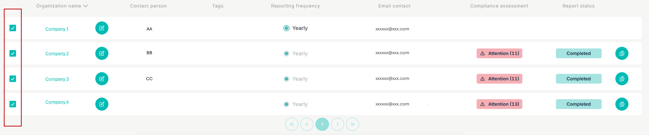
- At the bottom of the screen, you will see a menu (as shown in the image below). Click “Connect tags” to assign the tag to the selected supplier.

- Select tag and click “Confirm”.
To view suppliers with a specific tag:
- Locate the "Choose Tag" section on the right-hand side. This option becomes available once you have connected tags to at least one supplier.
- Select the desired tag from the dropdown menu.